
Frequently Asked Questions
Internet Service
Resolving Failed Payment Errors
If you received an email alerting you to a payment failure on your internet service, it is likely due to one of the following issues:
- Your account is short funds required for the service,
- Your payment information needs to be updated (address, expiration date, etc.) You can take care of these issues by following the steps below.
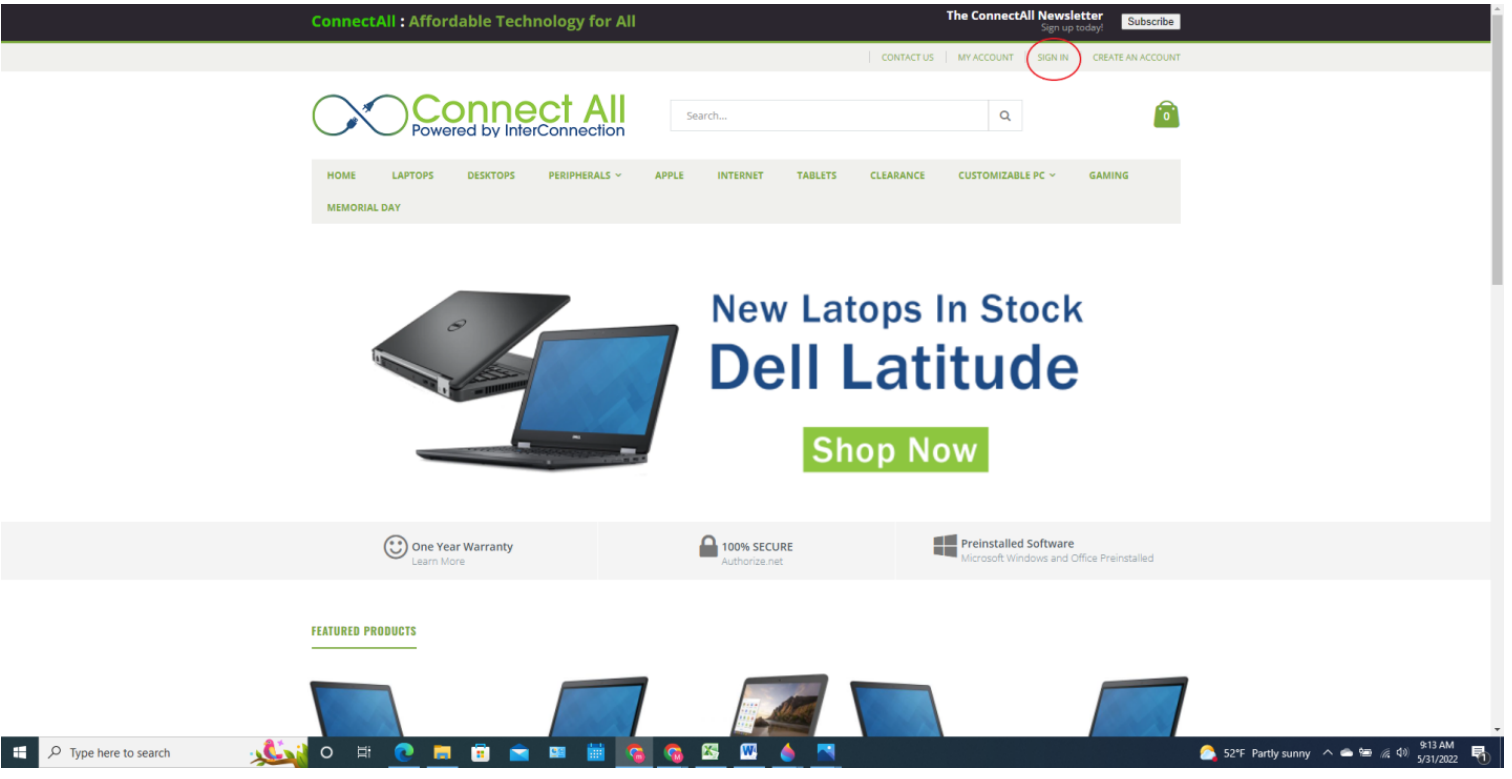
1) Go to https://connectall.org and sign in to your account. (Sign in circled in red below):
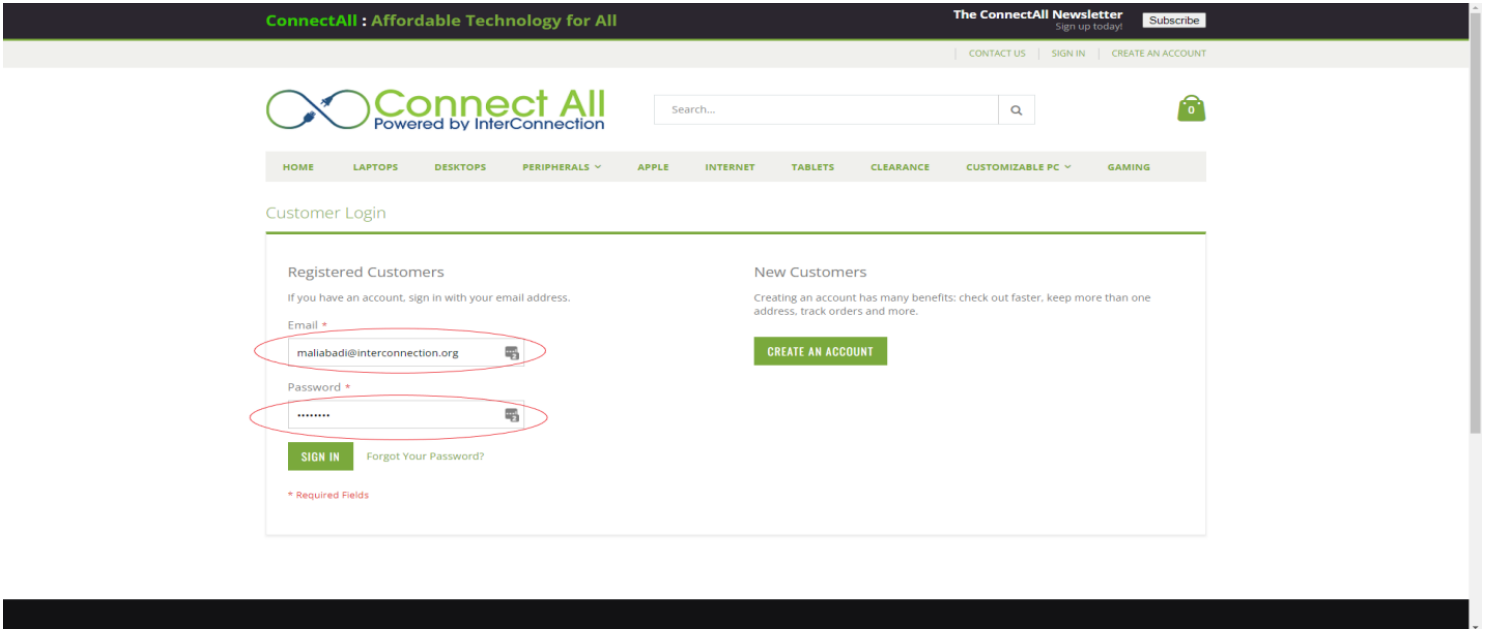
2) Sign in with the email and password that you used to set up your account.
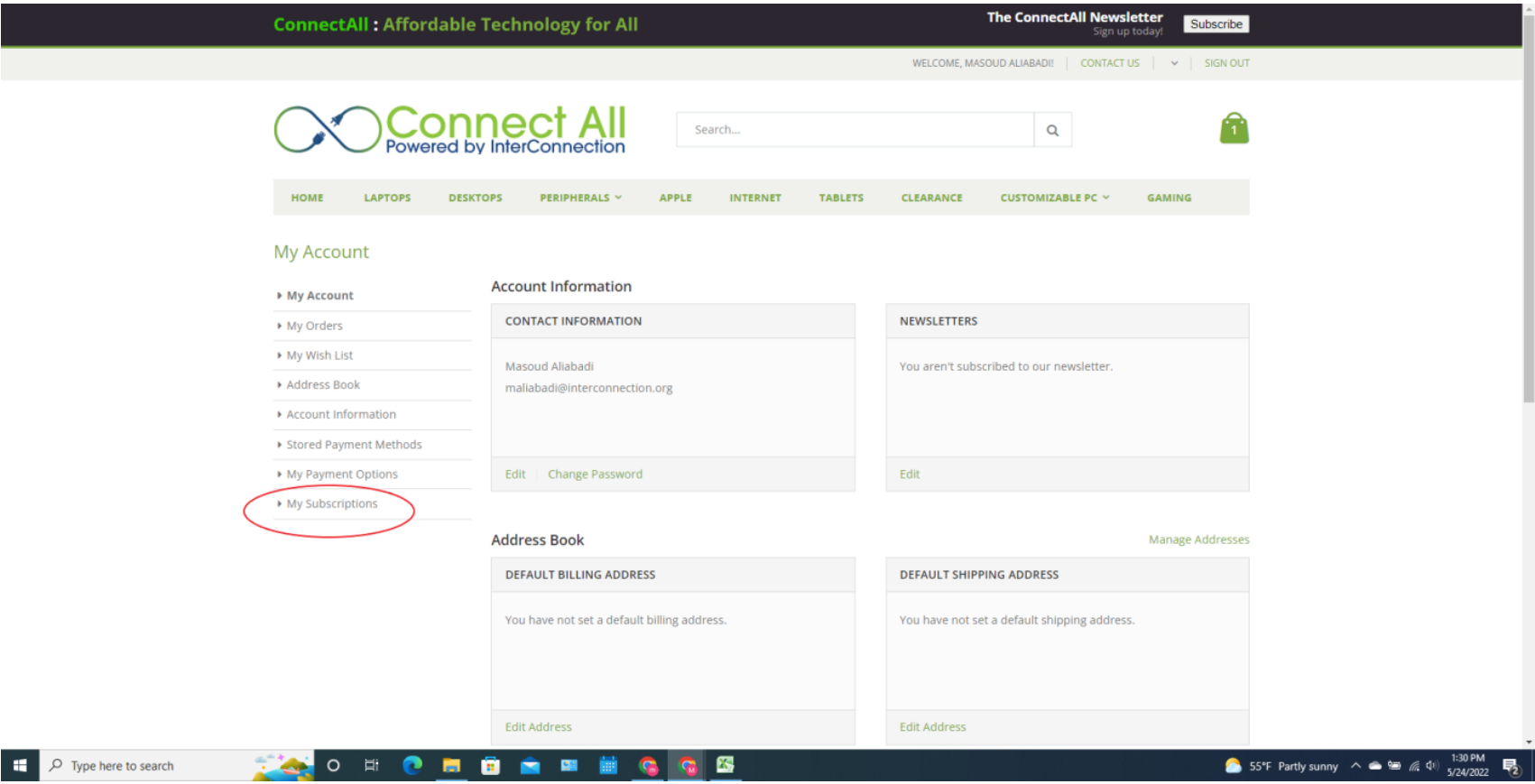
3) Go to My Account and click on My Subscriptions.
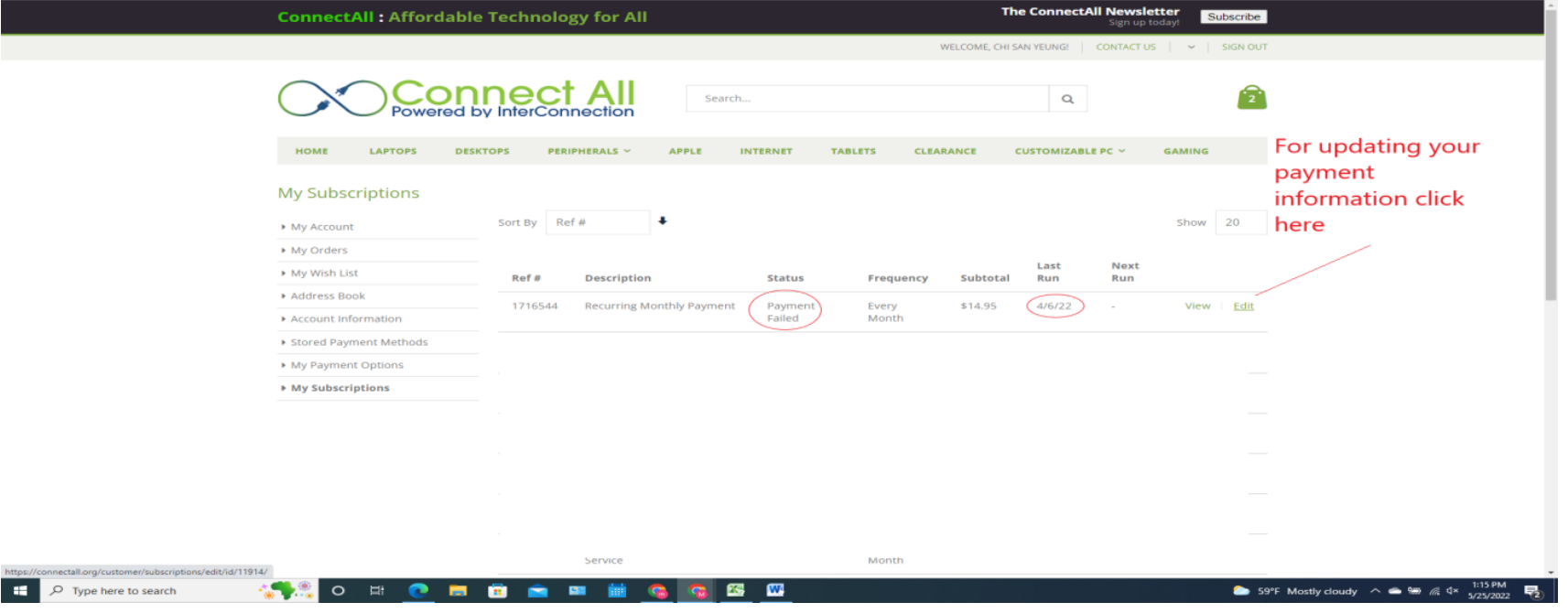
4) Find the MOST RECENT subscription with the status “Payment Failure” and click on EDIT to update the payment information.
5) Select the Credit Card you would like to use in the drop-down box. To add or update your payment information click on My Payment Data (see below):
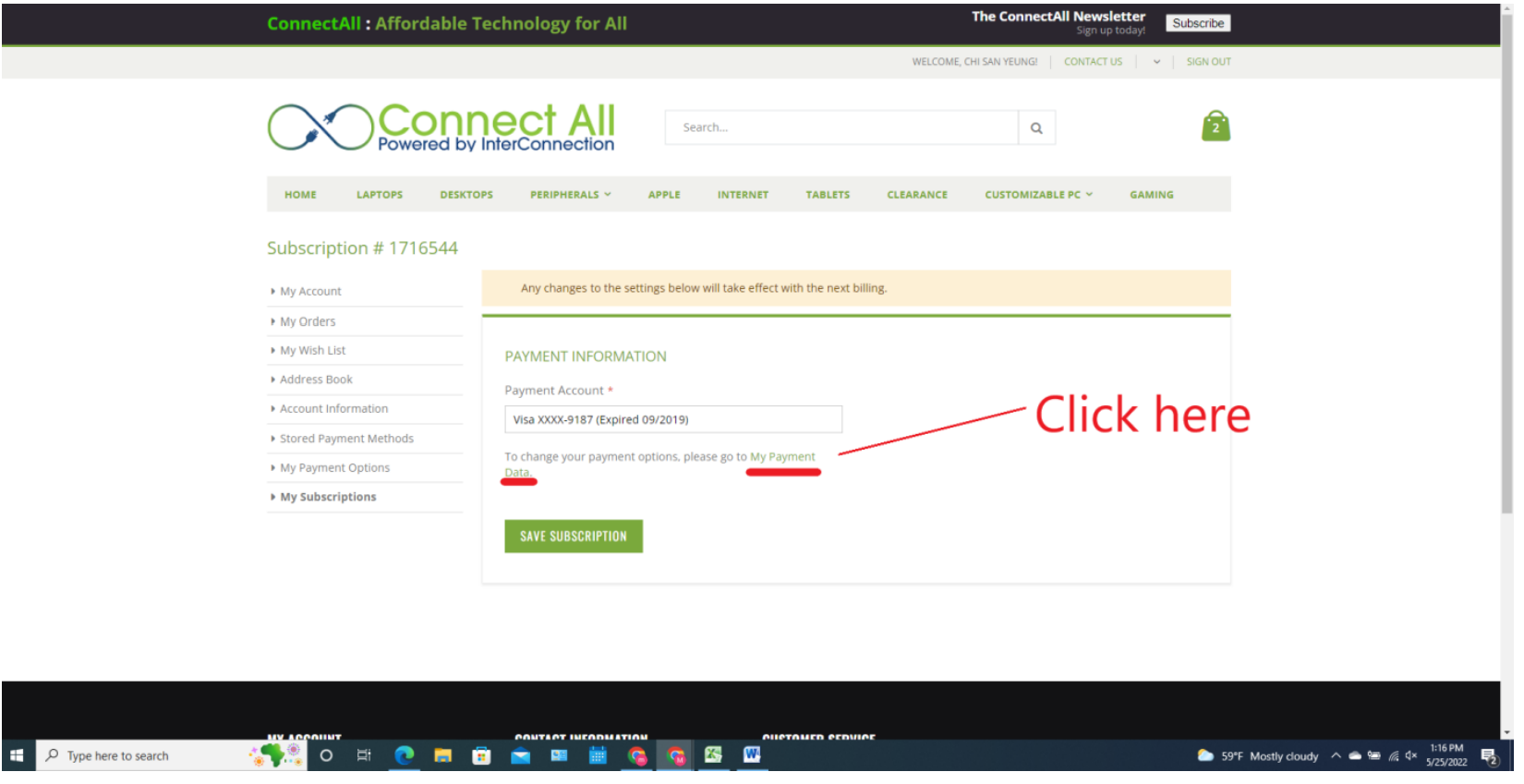
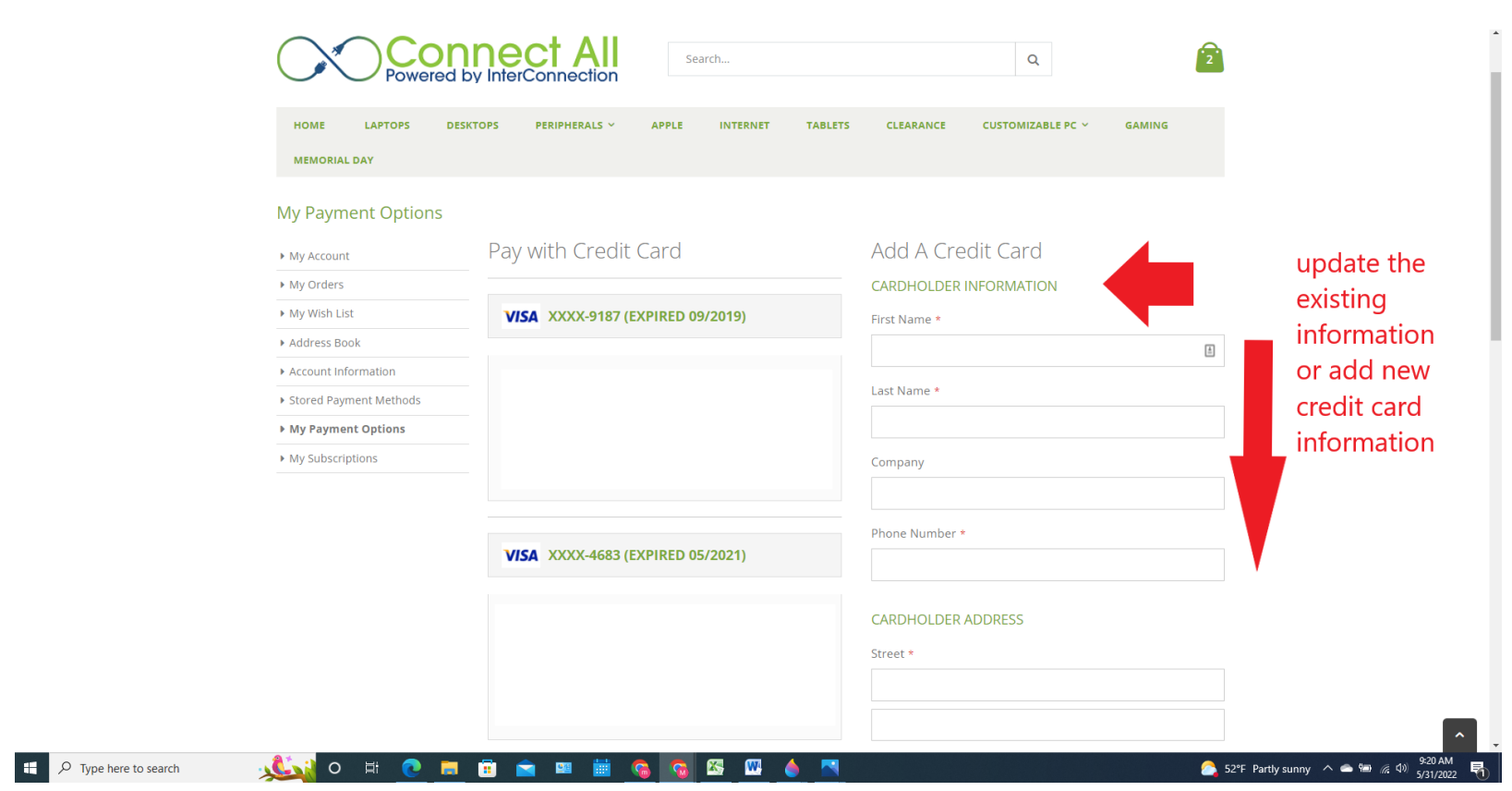
6) Update the payment information as necessary.
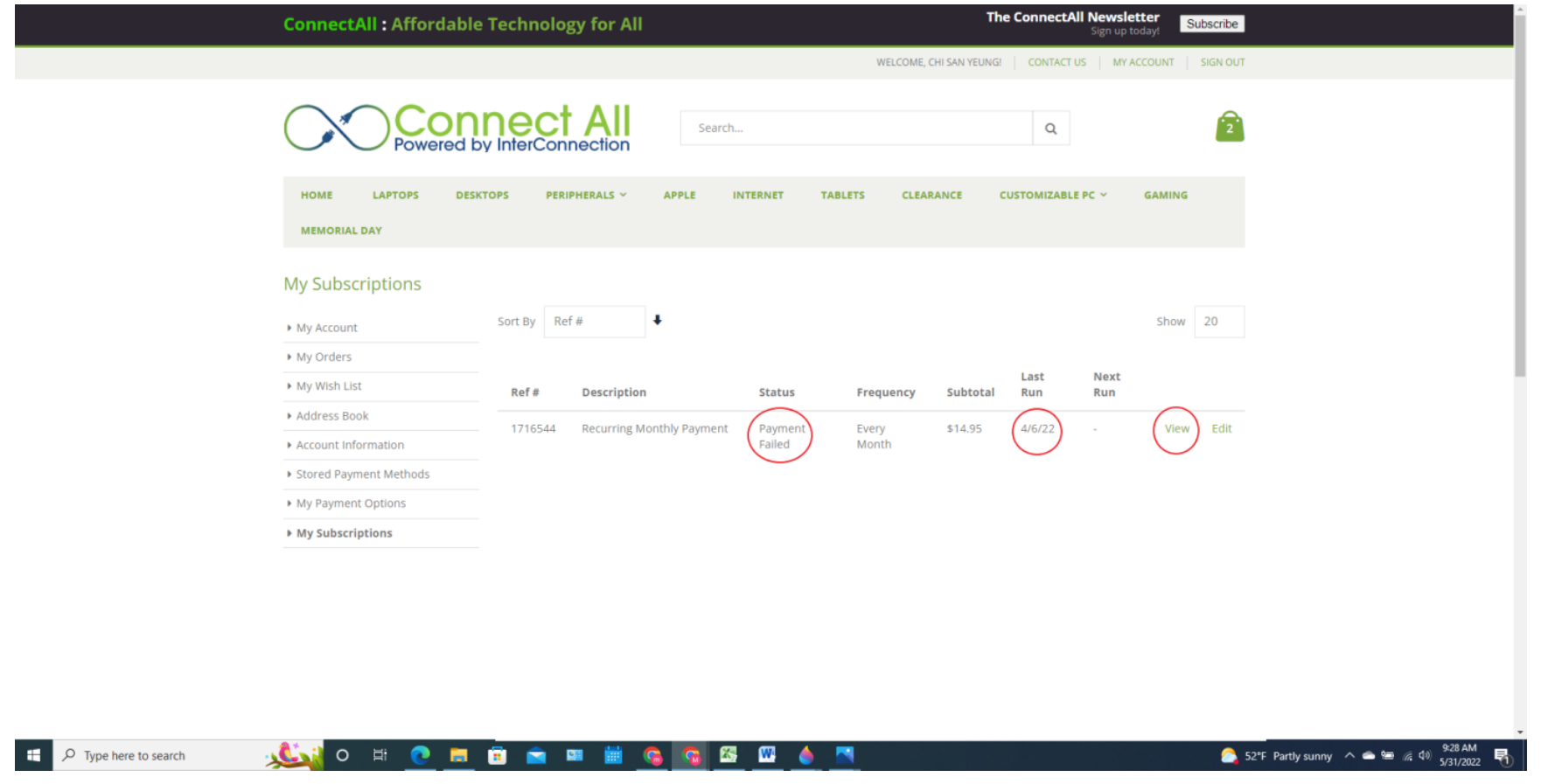
7) Return to My Subscriptions. Once you have selected the updated “Payment Account” that you would like to use for this subscription, find the subscription with the status “Payment Failure” and click “View”.
8) To alert the system to pay your service, click on Reactivate (look at the below picture).
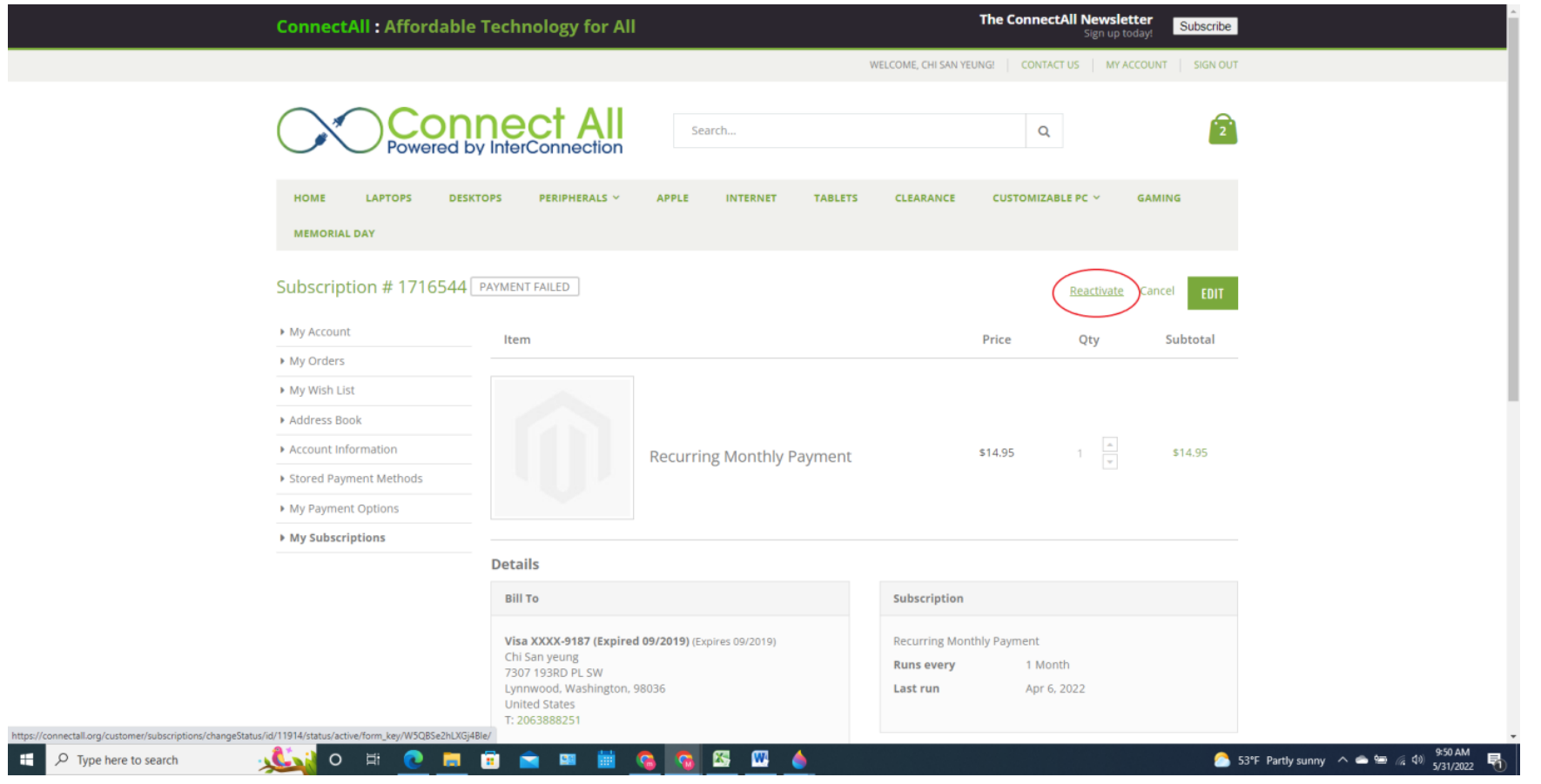
Your payment will run automatically in the next few hours. Thank you!
InterConnection
Try charging it first. Plug it in and let it charge for an hour. If it does not charge, reach out to Mobile Citizen Technical Support at 877-216-9603.
This problem should be addressed with Mobile Citizen Tech Support. Please have your hotspot IMEI# ready for the call. Mobile Citizen Tech Support can be reached at 877-216-9603.
Note: Make sure to get a Case # when you speak to Mobile Citizen Tech Support. If your service does not improve within 5 days, send a message to the InterConnection support desk with your Case # and we will escalate the issue. Without a Case # we cannot escalate, so remember to get one.
The device’s IMEI numbers can be found by removing the backplate of your Franklin T9 or T10 Device. The IMEI number will be printed on a white label underneath the battery.
Computer Purchases
Our computers have Windows 10 Pro and Libre Office installed: https://www.libreoffice.org/
For this you will need to contact our support team, who are best reached by [email protected]. When reaching out please make sure to list any issues you had, the reason you want to return the machine, your order number, and the asset tag number of the computer if you already opened it.
You may qualify by meeting one of the following criteria:
- SNAP/EBT card with name, WIC voucher, or Approval Letter
- Social Security Disability Insurance (SSDI) Enrollment
- Head Start Enrollment
- Low-Income Home Energy Assistance Program (LIHEAP) award letter
- Your child participates in the National Free or Reduced Lunch Program
- Section 8, Federal Public Housing Assistance, Group Residential Housing (GRH), Section 42, Low Income Housing Tax Credit unit or other HUD low income program
- Temporary Assistance for Needy Families (TANF)
- Medicaid Enrollment statement
- Unemployment Benefits statement
- Federal Pell Grant
- The most recent year’s tax return showing that your annual household income did not exceed 200% federal poverty level (FPL) or 60% area median income (AMI)
Technical Issues
Please make sure you have charged any battery the device has and that the power cord is plugged in firmly into both the computer and a working electrical outlet. If you are still having issues after making this change, please reach out to us.
If it has been less than 90 days since you placed your original order, please reach out to our support team. If it is more than 90 days, then your battery is no longer under warranty. The battery is guaranteed to hold at least a one hour charge for the first 90 days of life.